


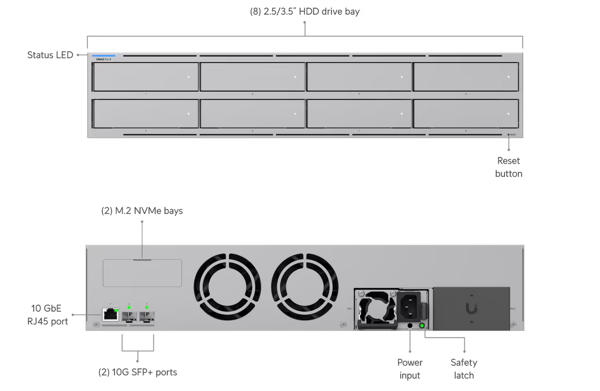
For a NAS device, the UNAS Pro 8 is at perfectly reasonable price-point of $1,145.00 before taxes. The drives are always what’s going to cost the most in this or any NAS. Just like the Cloud Gateway, you’ll have to buy the SSD tray. In this case, it takes two of them for caching, and with shipping, that order was a hefty $75.00. I also noticed 3D printed editions of this tray floating around, which would have been a great cost savings if I had a 3D printer at the time. Setting up the UNAS is easy – just get it on the network and go to the local address of your UNAS 8 and install the “Drive” application on the device and run the requisite updates. It’s all very Unifi Protect-like1. If you’re at the top-level of Unifi’s site manager on the web, clicking on the UNAS device will get you into the Drive application.
Storage on this is not well-suited for only two drives. You might setup a minimum of a RAID5 with three drives, but to get a RAID1 (mirror) just selecting two drives for a pool seems to not offer that option. When there’s data on the drives, it’s no issue to simply format it and use it later. Strangely, in multiple bays of the UNAS, it always detected the SATA drive placed there as an SSD, thus making it impossible to add drives in that slot to a pool. Finally, after mixing and matching drive sizes and types, the UNAS saw all three drives and used them. When a drive is bigger than the others in a RAID5, UNAS will limit the drive space to the smallest size available, which is a standard for mixing drives. Keep in mind, I was not following Unifi’s list of supported hard disks either. Synchronizing that storage pool was relatively speedy, though your mileage will vary depending on the drive sizes you use.
Adding a cache with SSD drives is going to be something you want to fully utilize the UNAS. Adding them requires the previously mentioned trays and sticking to the same size. The UNAS has a compatibility list for those also, but it seemed fine when I threw two very dissimilar 256 GB NVMEs at the UNAS.
SMB File Sharing
So, then what does this do primarily? The core thing you’ll use a Unifi NAS for is file sharing and backup. Enabled by default in the “Services” tab is SMB sharing and Time Machine backups. Disabled, but available at the time of publishing was NFSv3, something you’d use with Linux. I expect this specific tab to expand with options over time.
The SMB sharing is perhaps most interesting. The documentation Unifi provides refers to a setting that doesn’t exist in the software (in the earlier release I tested). Perhaps things change so fast and they haven’t kept up with it. They say go to Go to Control Plane > Users, but there is no path. One must find “Admins and Users” in the left menu and then “File Services & Time Machine Credentials” to control access to files. What this will look like in the interface a year from now? Who knows. At the time I reviewed this model, no user can access SMB shares by default. Enabling them allows for the creation of a independent username and password for the shares, submit to enforcement rules (like being 12 characters long2). The process itself seemed very convoluted3.Not only that, it can break services when you change that username/password and it reportedly requires a reboot of the NAS.

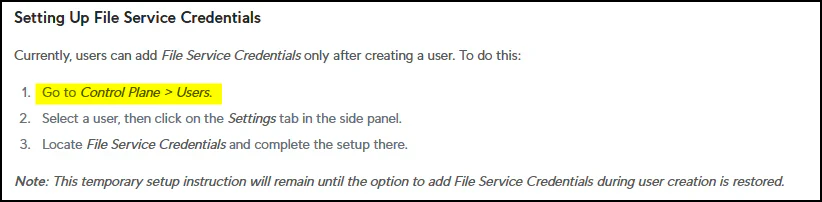
After a little trial and error, I was able to get SMB functioning with setting in User -> Assignments. Both Windows 11 and MacOS connected to the NAS with no real issues at speeds I expected. This service is core to the UNAS, so it should be further simplified for casual users.
Other Features
As you might expect from a Unifi software device (1) it’s got to be hooked into the cloud to be useful and (2) the interface is somewhat bare-bones, but functional. These two things are locked with UNAS as so much of this depends on identity features or other cloud-based stuff provided by Unifi.
Case in point: The out-of-the-box file sharing service. If you go to the file list on Drive and right-click a file and choose “Create Share Link,” Unifi immediately know what to do with that and creates a link on drop.ui.com. This link presumably connects the the NAS via the cloud via some sort of WEBRTC service hosted by Unifi. So, keep this in mind if your NAS is super old and Unifi has moved on from hosting this service. When clicking on the share, it includes a basic viewer and the ability to download the content. As it is on most services like this, shares can be time-limited, password protected, or set to die after a set number of accesses. There doesn’t yet seem to be a settings page to make all shares expire or enforce any sort of rules on new or existing shares.
Performance
With all the above, I set to testing some of how fast this NAS can be. In my UNAS Pro 8, there wasn’t any blazing speed in the drives, using a mix of WDC WD5000AAKX SATA drives and Toshiba KXG6AZNV256G SSDs for caching. Installed at base was a RAID 5 for the storage pool and a RAID 0 (Read-Only) on the SSD cache. All synchronization and formatting was finished before testing. So let’s just say this was not going to exploit anything on the high-end. As with all things, these tests are relative.
On my first test on a 1 GB network from a 1 GB client, the UNAS easily maxed out my network card and it was generally the same for other NAS devices available So, the first test went well. For my second test, I used a Unifi 10 GBs network adapter on USB-C with a laptop directly plugged into the UNAS` 2.5 GBps port. From there I easily topped 2 GBs speeds and burst even more in the beginning. There would likely be more here if the drive array were filled faster devices. All told, this is reasonably good performance given I’ve cobbled together this drive configuration. Since the UNAS 8 has a 10 GBPs port, this is the ideal means of testing the network but I did not have all the pieces in place before publishing this article.
Enter an Update
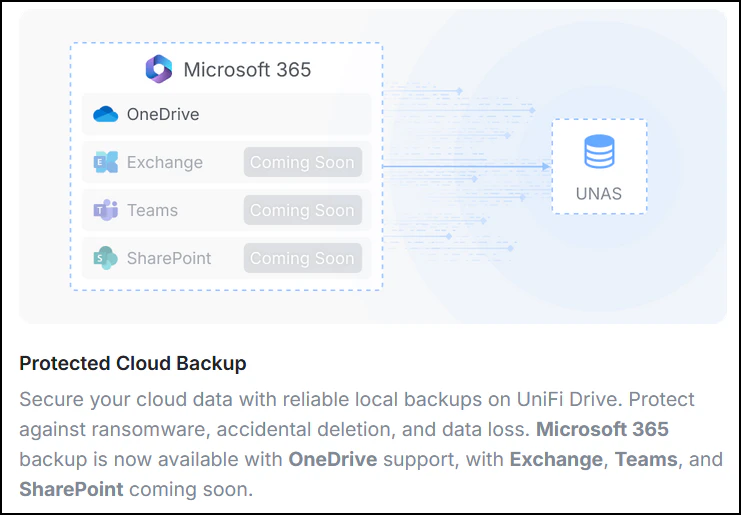
While testing, Unifi’s drive application was updated from 3.4.5 to 4.1.16, this would open up some new and interesting features. The first notable feature is mobile photo backup and secondly the anticipated Microsoft 365 backup tool. Both of these are a little half-baked and not fully fleshed out, but they work fine. In comparison, you’ll find Synology’s NAS software to be more fully featured on mobile and in the 365 backup department. But, it’s a good start for Unifi.

Closing Thoughts
While this is a beefy device, it’s light on real business-ready features. As a speedy SMB file sharing NAS, the UNAS is wonderful. And, with eight drive bays, you can get a seriously large volume setup. If you’re looking for more mature business-ready features liek full 365 and Google G Suite backups or immutable storage, you’ll need to look to other vendors like Synology. What’s here has a great deal of potential, and I’m excited to see where Unifi goes with the product and software. It makes sense for them to be in this market based on the years of experience with drive arrays and network video recording software.
The oft-heard value proposition Unifi trumpets is “license free software,” and it’s less of an advantage here because most NAS-based software is that way. Expect the Unifi line of NAS devices to have a difficult time competing in a very crowded and mature market of players. That said, the potential is here for a feature that would be killer when help to other vendors, but it’s just not there yet.
- Strangely though, Drive cannot be administered in the Unifi Network mobile application. ↩︎
- You’ll have to change everyone’s local password to at least 12 characters to make pass-through authentication happen. This might be annoying in small peer-to-peer shops. ↩︎
- And that’s saying something coming out of a Windows environment. ↩︎