


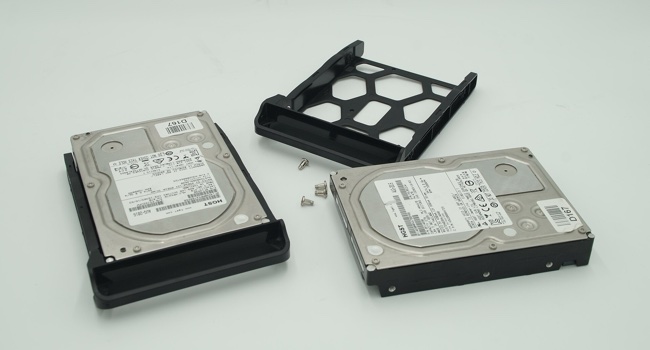
Merrium-Webster defines immutable as “not capable of or susceptible to change.” In the context of a backup or a stored copy of data, this means that data can’t be changed, moved or deleted. But why would you want to make a backup immutable? The main reason is to combat a type of malware attack called ransomware. This type of virus gains control of a device or network and jumbles up (encrypts) all the files on each device while the ‘bad guys’ offer to decrypt the files for a monetary amount1. Some versions of this ransomware will also spread out on the network to try to infect other devices or be installed on them and encrypt that stuff. This is messy if your “Documents” folder is encrypted, yes; but because most backup locations are read and writable, the malware will also simply encrypt that going full Mr. Robot2. Criminals are clever, so they sometimes take over entire virtual machines and encrypt them. All of your data is then unusable. Making the backup immutable is one solution to combat this.
How This Looks in Practice
On the Synology Network Attached Storage (NAS) devices that support this feature, it looks like snapshots of data points. For all applications on the NAS, there are buckets of data created to support them. You might have a Plex server that holds a large number of videos or a backup of your laptop’s “My Documents” folder. These data points can then have snapshots created.
1. First. log into you your Synology admin interface and install the “Snapshot Replication” tool using Package Centre.
2. Open “Snapshot Replication” and click the “Snapshots” item on the left-hand menu
3. You’ll likely start with a shared folder, but you can also configure LUNs too. Click to highlight an item and then click settings. It will look like the image below. Enable a schedule, then enable immutable snapshots.

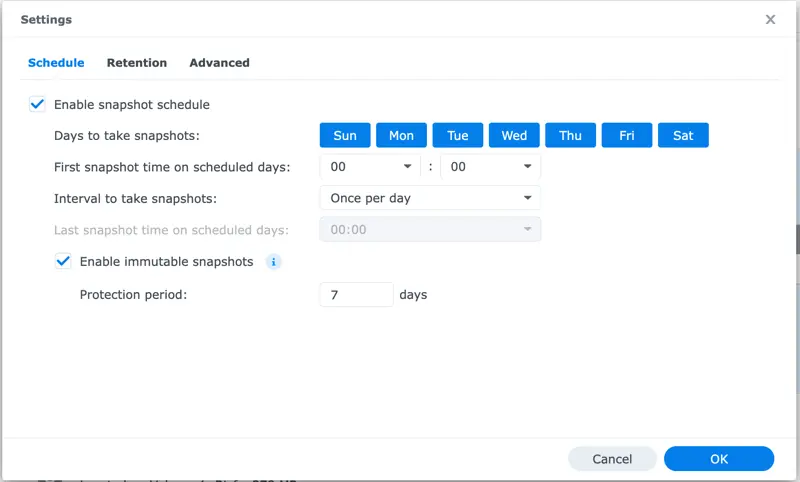
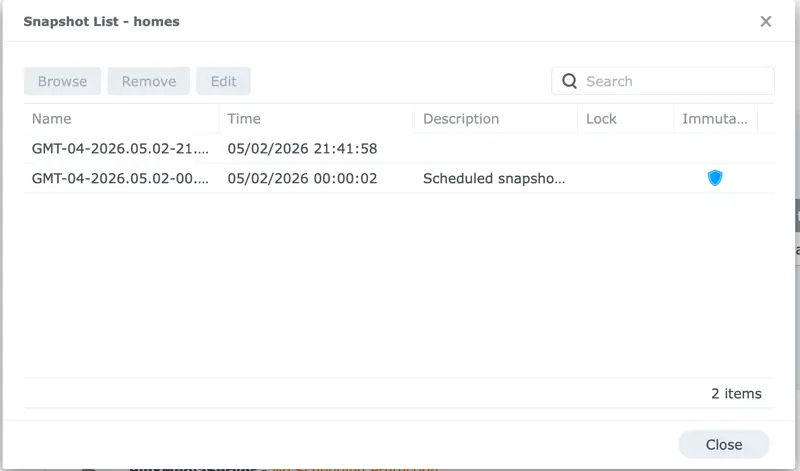
After this, the data saved on schedule for this share snapshot cannot be removed. The volume can’t be deleted, nor can the drives be formatted. This goes for all users on the. NAS, even the administrator. Of course, one could restore a snapshot, but for the above example of seven days, that data is stored and untouchable. If you look at the list of snapshots, you’ll see a blue shield icon in the column that says “Immutable,” indicating these can’t be removed during the retention period:

The Right Types of Data
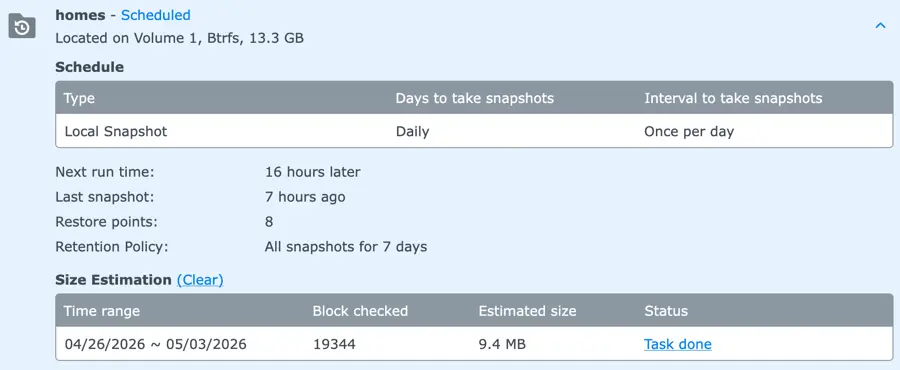
Most important to a feature like this is that when the data is created, it can not be deleted or altered. So, if you’re snapshotting up 1 TB of data every day for 14 days, this is going to grow fast. It’s important to remember, however, that snapped data is not one-to-one for each of the snapshot.3 To keep an eye on this, use the tool that lets you calculate spaced used. Remember, you cannot delete immutable snapshots while they are within the expiry window, so you’ll want to pay attention to the kinds of data you snapshot. The perfect data would be user-generated files such as those created by Synology Drive (the Users share) or perhaps a raw data folder that hasn’t grown too large. If you have enough space on your drives, you’ll be able snapshot it often. The best way to go is as the data being snapshotted is larger, snapshot less, and keep it for less time. 7 to 14 days is reasonable for most cases, and after that time those immutable snapshots become available.
Most importantly, snapshots don’t appear to take up space one-to-one against the original data. In the example below, a total of eight snapshots are protecting about 13 GB of data but use up only 9.4 MB of space. These are all small files that change very little so in your case, results may vary.

Final Thoughts
The question becomes then, can a clever hacker not just attack the data and encrypt it, but attack Synology’s operating system and block access to that? I have to think someone will do that (if they haven’t yet). As blended threats continue to demand more out of backups and recovery sources, there’s a real need to find new ways to protect that data. Couple this with machine learning digging up lesser known exploits and the environment is about toe get nasty. If you have a NAS on-site, consider either upgrading to a model that can do immutability, or enable this option if supported.
- Usually in some crypto coin like Bitcoin. The Government of Canada has a case study on this. ↩︎
- That was what FSociety, the hackers on the show tried to do. Destroy the data and then all the backups. The ransom money was just burned. ↩︎
- They provide an explainer here. ↩︎