A Look at Actual Multiple Monitors (Six Years Late)
 Way back in 2020, I was in contact with the author of this software. He’d provided me with a review copy and I looked at it, wrote most of this post and it got shelved (my fault entirely). Today, I’m taking another look at this software to see if how it looks now. You can find the software on the Actual Tools website.
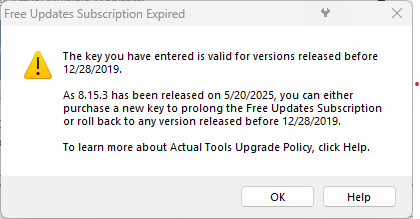
 I wanted to provide a review of this application and the author was kind enough to provide a key so I’d be able to test all the features. My situation is somewhat unique in that my current laptop, a Microsoft Surface, is connected to many different monitors and in a number of different multi-monitor situation depending one where I am. As I added monitors to Windows (currently version 10), I noticed that the interface doesn’t handle the different monitors well. When I came back to this years later and tried to use the key, I found out that the software does not let you use a license in perpetuity (like Total Commander does). Hey, that’s okay, it’s the prerogative of the author. One still gets a 30-day trial to use an test the software. The author has some thoughts about cracks, etc.
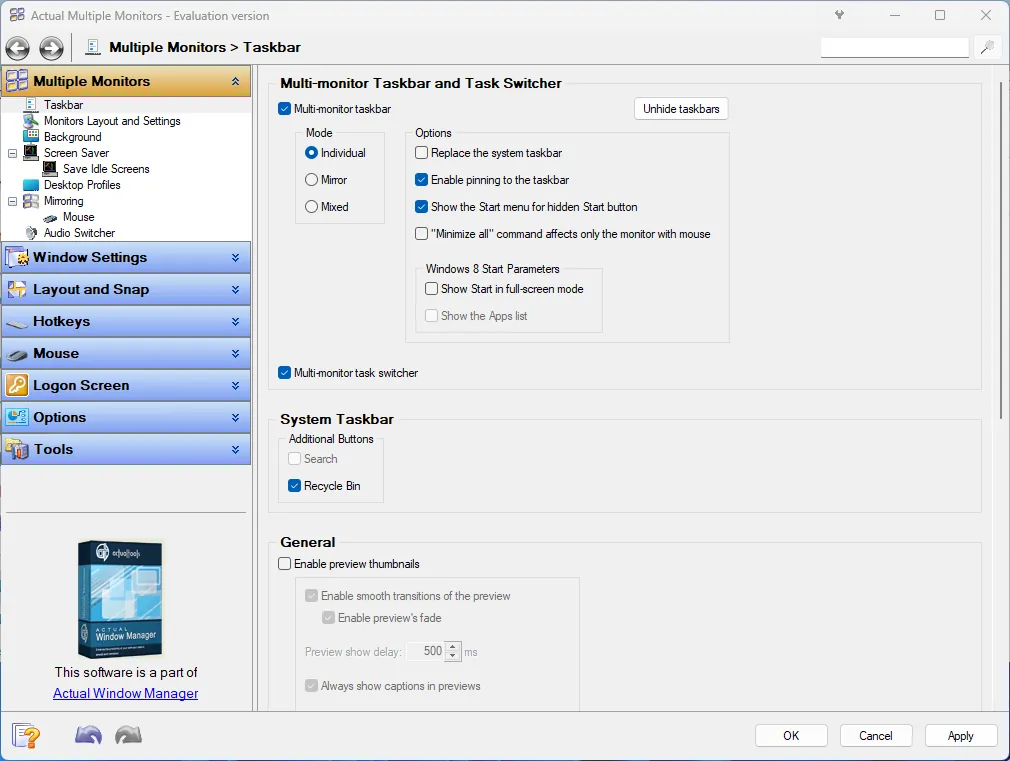
On running Actual Multiple Monitors (AMM), you’ll notice that it does a few really useful things right away. Probably the biggest and the best feature to me was duplicating the system tray area on every monitor1. Sometimes I need access to a running tool, or when Total Commander is minimized to the try and a click on the tray icon gets it back. There’s lots of interaction with the tray usually, and having it sit way over on my small Surface primary monitor felt like a waste. Another cool feature related to the tray too was having the Recycle Bin (and the ability to right-click clean it) offered yet more convenience. You’ll notice too, that you can pin icons to the taskbar individually for each monitor. That’s helpful too when clicking on a pinned icon from a particular monitor’s taskbar launches the app there too (or at least that’s the ideal). Already AMM is useful.
How windows interact with the different desktops is important too. The line sort of started to blur as far as what AMM was doing and what Windows itself was doing. In Windows, there’s a well-known hotkey combination of SHIFT + WINKEY + Arrow (right|left) that pushes the in-focus window to the corresponding numbered desktop. That works well enough, but AMM offers another tool, this right on the title bar of windows - AMM calls these “Muse Actions.” The button options there control a few things, but one of them moves the window to the next sequence monitor in the chain. It’s kind of a quick tool, which is useful, but I tend to lean more on the keyboard shortcuts (so they’re not forgotten). Strangely too, turning off this setting turns off the icons, but AMM has trouble keeping them off for good. Confusingly, these options are controlled in a setting called “Title Buttons”. They can be annoying because they’re overlaid on Chrome tabs (for example), blocking access to them.
While useful, AMM has had issues. When attempting to change the resolution on my computer’s primary display, AMM set a resolution, but was unable to change it back. I had to exit, then use the built-in Windows display settings to get the display back to a usable state. Other times, shifting monitors from portrait to landscape, changing setting in AMM’s dashboard, yielded no change. In cases like that, I was forced to exit AMM, change the setting in Windows and reload. Also, all the pinned taskbar stuff was wiped. While it only occurred once, it seemed possible the tool crashed on me, but that may have been my error while testing it. Taken all together, things like these make me think AMM isn’t really playing well with the underlying Windows 10 system (not that I’d expect it, no thanks to Microsoft). Is that still the case in Windows 11?
I also had to restart the AMM application because it wasn’t respecting the taskbar boundary limits when maximizing or snapping a window. Once restarted, AMM started working normally again.
And working in single desktop (after disconnecting all monitors), the application generally sits benign adding some icons such as the Recycle Bin making things mostly useful. At some point my tray icons are colliding with the taskbar pinned buttons. Ah, a problem for another time. I should mention too, AMM runs fine without an Internet connection. I see the occasional refresh happening in the background, but that may not be AMM doing it.
For the sheer number of options and things you can do with this tool, it’s worth checking out.
Version of AMM Tested: in 2020: 6.x, in 2026: 8.15.3
Computer: Surface Pro 6 / Dell Optiplex Desktop
Monitors: (3 at maximum, 1 at minimum).
-
It’s probably the biggest reason to get this software, even on Windows 11. ↩︎