Moving email Hosting from Microsoft's 365 to Apple's iCloud
 As a knowledge worker, I have an intolerable need to take a working tool, blow it up and start from scratch with some other system. This is why my accounting package changes every few years and I tear out CWL’s servers only to add different ones. Today, in my crosshairs is the most vital of systems, that of email hosting. Long gone are the days when we can reasonably self-host a mail server1, so we are beholden to ‘big tech’ for this all important service and no one, save one company2 offers this for free on a custom domain. While iCloud is not commonly thought of for their mail servers and email hosting features, I wanted to take a live domain there and see how it goes.
This starts looking like a good deal when you stack it up against another low-cost solution like Microsoft’s 365 and the Exchange Online (Plan 1) license. At $5.60 / month, Microsoft only offers 50 GB of mail space and no other features. Not even access to OneDrive for file sync. Compare it to Apple’s 200 GB level of iCloud+ for $3.99 a month, it starts looking far better to be in the Apple ecosystem. But, how does the Apple mail service on your own domain stack up? For the iCloud+ level targeted today (200 GB), it includes three accounts on the custom domain, though the plan is to only use one.
Basic Setup
The first thing Apple asks for is verification of the domain. This seemed a bit unorthodox by emailing the primary account on the domain. This stage is commonly completed with a DNS entry. Even more odd too, was that the verification email contained no clickable links when viewed in Outlook Classic. To get at the link, I needed to view the message source and copy it. Okay, that was a curious way to start the process.
Next was to cut to the chase and add domain records. The help page references the “registrar” as the place to add DNS records, yet it is obviously the DNS (or a registrar + DNS). The records were all standard with the DKIM being a CNAME record. These were straightforward and after Apple verified them, the domain was active. As with so many things Apple, interfaces are simplified and on the surface, no diagnostic data is available. Shortly, while logged into the web interface, mail started to flow.
With mail coming in, it was time to setup clients and move away from Outlook on the desktop. Changing the setting on the account to make my custom domain email address the primary was essential as well as removing all the standard, and very stupid, “Sent from iPhone” signatures that are on by default. Next, moving all the data from 365 to iCloud.
Migrating the Data
Moving the mail data was by far the longest part of this process. Since the systems are two different vendors, they’ll have different ways of representing the data. In this case, I’ll migrate the contacts, calendar, and messages over to iCloud’s systems.
The contact export/import process was as obtuse as ever. Follow this process to get your contacts from Outlook into iCloud:
- Do the typical Outlook File -> Export, choose contacts and a CSV
- Use a Gmail account (presumably with no contacts) to import this CSV of contacts by opening contacts.google.com and clicking Import.
- With these contacts in Google, click on the up arrow icon on the top right to export all contacts here into a massive VCF file3.
- Now, it can’t currently be done on the web, but if you get on to a MacOS device logged into this account, open the Contacts app. Once here, click the menu File -> Import and chose that VCF file you created from Google and import everything.
After all of these steps, your contacts will be inside of iCloud and usable in mail and any other Apple device. On the best of days, contacts are a minefield for issues because of the different vendor’s support for different fields and features. You’ll have to start with a base of information and work backwards to update information and assess what didn’t make it across (like images, etc). And, don’t forget that some of this doesn’t work in specific browsers such as Firefox. You won’t like this process and will cringe at the thought of what’s next, bringing your calendar over.
Mercifully, I’m happy to say that exporting your calendar from Outlook (File, Save Calendar or in the Export File location) into an ICS file, and then importing the same into the Calendar app on MacOS gets this job done reasonably well. There’s no need to even attempt an import via iCloud in the browser.
For the mail data itself, I needed to return to the old mailbox and clear out things like deleted items, junk and any other mail that could save time in this process. Then, it’s just a matter of loading icloud.com/mail - choosing the settings gear and running the “import mail” process by logging into outlook.com. You’ll need admin approval on the 365 tenant to get this step kicked off and might need to re-login after the first approval. The import creates a root folder named after the email address and should take forever with lots of data, so expect that.
While I was at it, I made a backup of the existing mail off 365’s servers. To do that:
- Access the 365 Admin portal with administrator permissions
- Open Purview eDiscovery4
- Create a search query for mailbox items to export
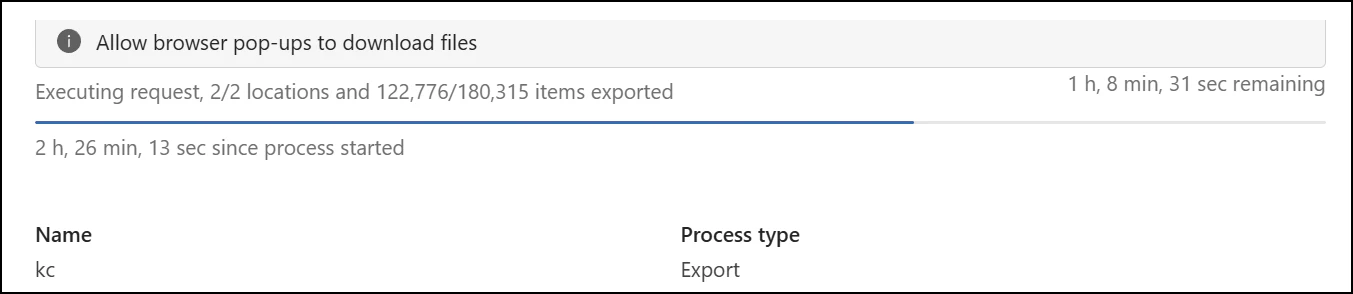
- Export mailbox items in PST file format using Microsoft’s download tool. Save that.
Advanced Features
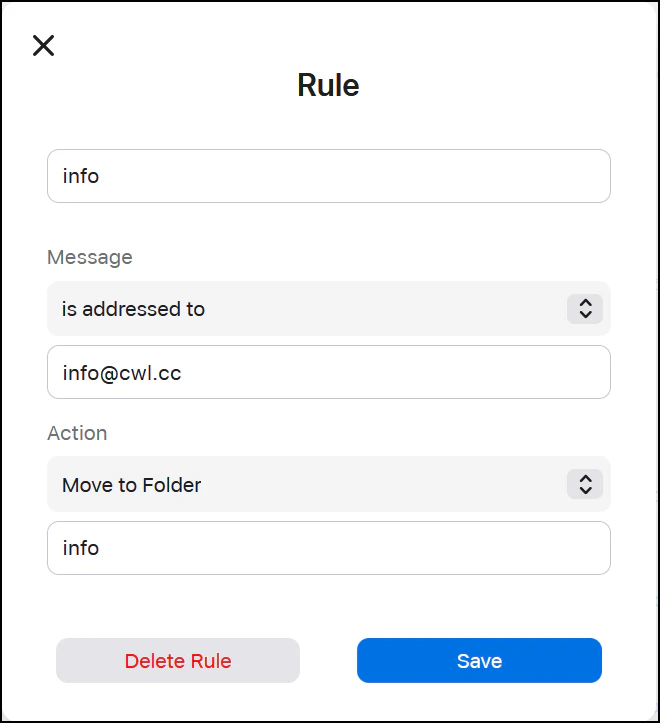
Perhaps the most used feature in 365 mail for me has been adding aliases to my main account. Up to this point, I’d added 33 of them. These days, email aliases are helpful for a ton of tasks when setting up accounts online, but you can’t use your main email address (yet still need t get the message). But, in iCloud+ there are only three aliases allowed, and even those have to be on iCloud.com, not your custom domain. I managed to get around this by adding rules, which were not perfect but did the job. For each alias needed, create a rule that looks for “is addressed to” and puts that message into a folder.
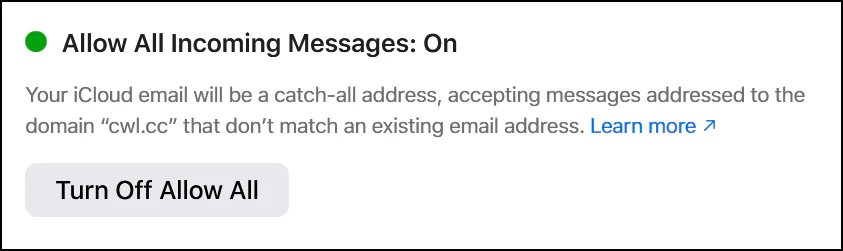
You’ll also want to turn on the setting in iCloud called “Allow All Incoming Messages” so it catches everything, even stuff not attached to the users you have on the domain. So far as I can tell, there is no access to the base pipeline of all incoming mail.
As expected, there are no other tools such as SPAM filter control and the kinds of stuff that can be done in Power Automate, for example5.
What About Windows?
Thus far, there is no native Apple application to read iCloud mail on Windows. There is iCloud for Windows that syncs files and lets you hook into Outlook, but beyond iTunes, I don’t think Apple makes anything else for the platform. Reddit seems to love Mozilla’s Thunderbird for this use, but I haven’t tried it. If you aren’t wedded to Microsoft’s Outlook in a big way, rip that Band-Aid off quickly.
Final Thoughts
The tools Apple offers are consumer grade and have various pitfalls that would drive you crazy if you had a large volume of domain accounts. But, I’ll give it to Apple on one point: This all works fine. In today’s environment, Apple is as good as any as a mail hosting server and may be cost effective choice if you don’t need a ton of accounts. Now, let’s hope they don’t screw with this feature set too much.
-
While the technical tools today are brilliant and democratized, the ability to gain trust in the marketplace of email sending is nearly impossible. ↩︎
-
Zoho offered a free plan, but seems to have upgraded some part of their infrastructure and stopped supporting a free version. Maybe it’s there if you ask for it (always going to be free to ask), or maybe it will never come back. ↩︎
-
Why not do this directly from Outlook? Because Outlook creates on VCF file per contact. That would become unruly very fast and impossible with my 800 contacts. ↩︎
-
It’s just what they’re calling it today, tomorrow, who knows. ↩︎
-
I will miss this too. I managed to setup an auto mailer based on this blog’s RSS feed notifying people of new posts. Back to the drawing board on that one. ↩︎