Setting Up an iPhone or iPad to Access Microsoft 365 Mail

I’m back with another basics article, this time I’m going to discuss connecting an iPhone or other Apple mobile device to access mail (and other data such as calendar) on a Microsoft 365 account. You have two ways to do this, either by way of the Outlook mobile app, or With Apple’s internal Mail app. Each one has their benefits1, but people do not typically use both.
iOS’ Internal Mail App
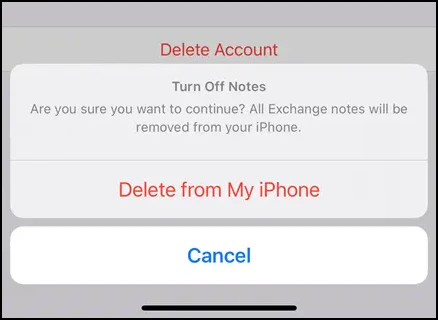
- If you had this email account setup previously, remove it - Go into Settings -> Mail -> Accounts and find any previous “Exchange” account attached to your device. Remove that by tapping on it and tapping “Delete Account” link. You’ll see a message “Delete from My iPhone” - please be sure to do that (it avoids duplicates)2.
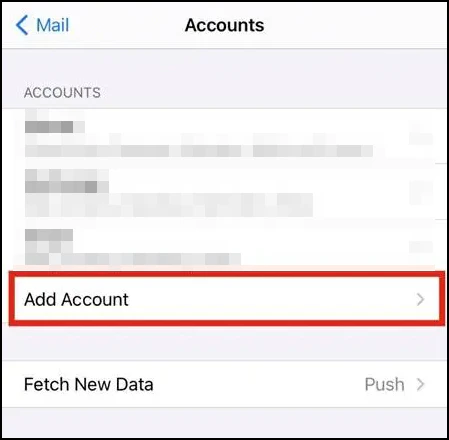
- Go back to Settings -> Mail3 -> Accounts and tap “Add Account.”
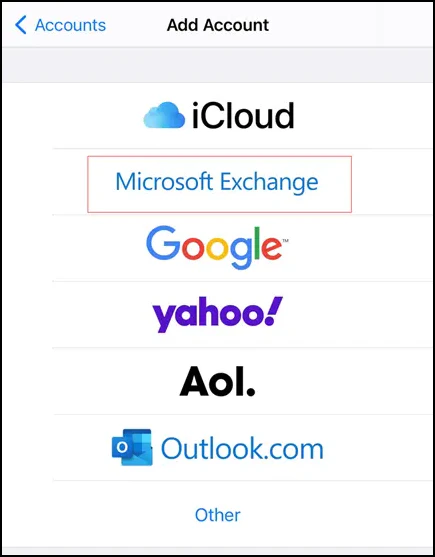
- Choose “Microsoft Exchange.”4
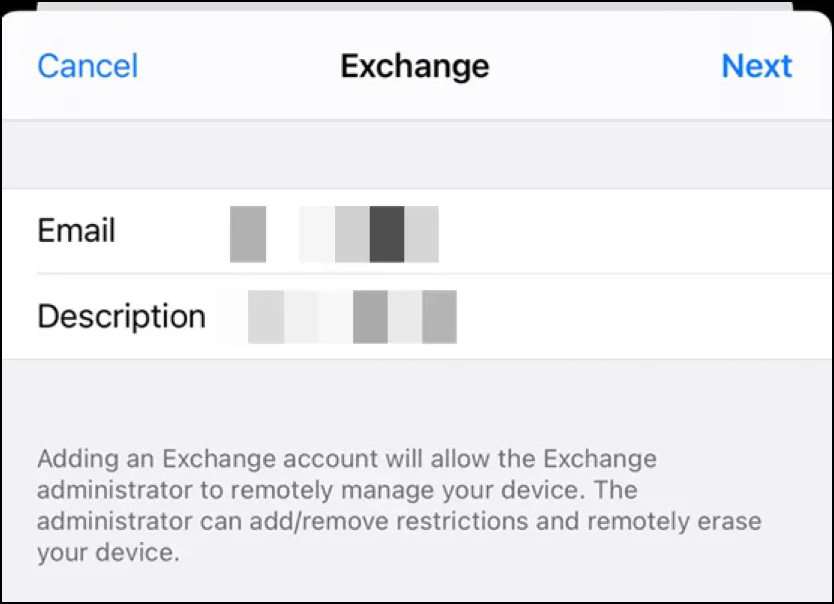
- Now, enter your full Microsoft 365 email address and the description can be anything - it automatically fills in.
- Finally, you’ll go through the Microsoft login process (make sure to choose a work account if you use a custom domain), choose the stuff to sync (everything) and then the account is added and you’ll see email in the “Mail” app on the device.
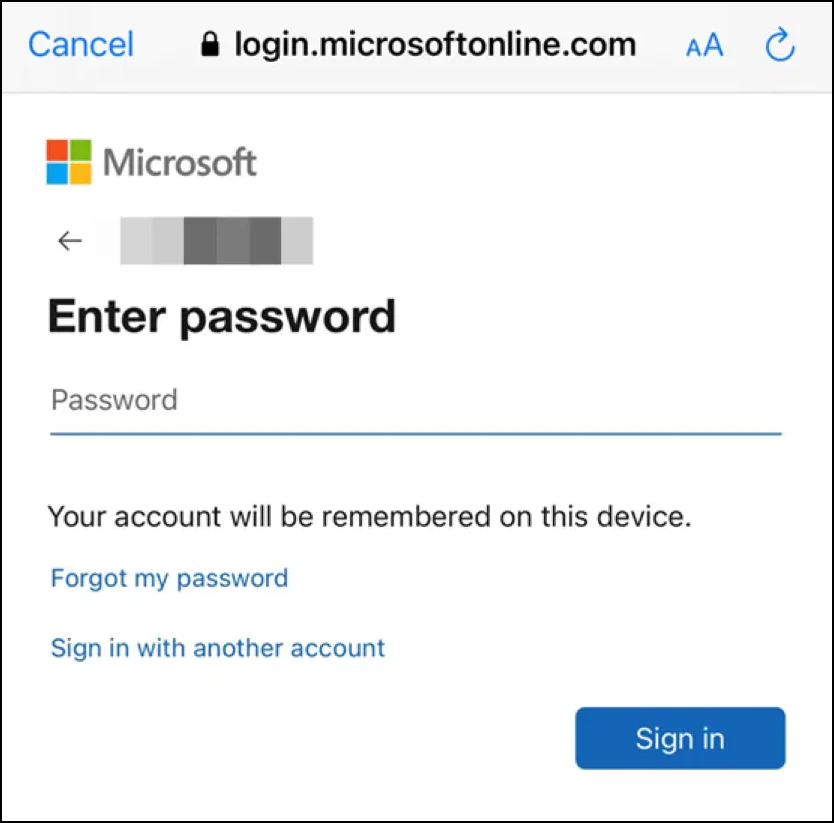
Microsoft’s Outlook App
- Download the app from the App Store.
- Click on “Add Email Account” and login to your account.
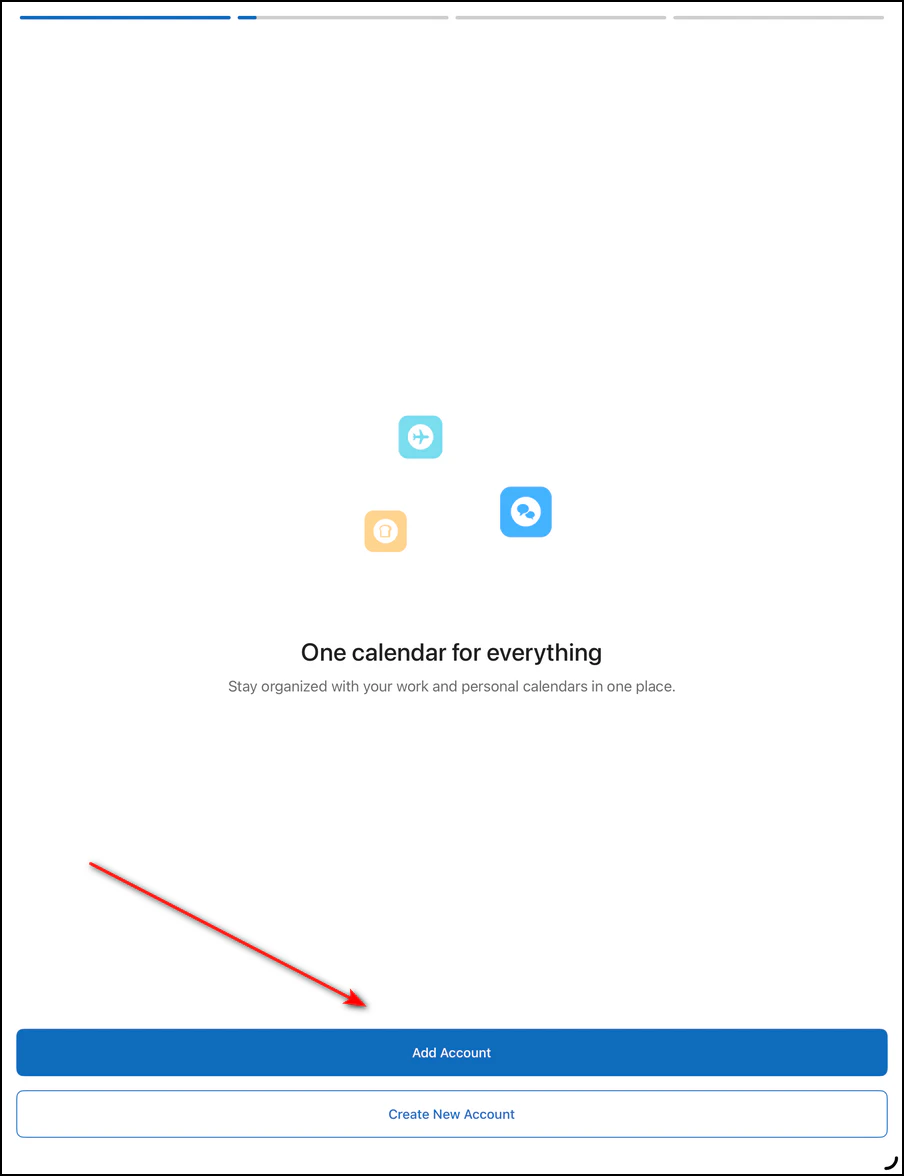 The Outlook app on an iPad device
There are other tools to access a Microsoft 365 account, though these would be the two most common ways to do on an iPhone or iPad. The process is going to look different on a MacOS device, so that’s not covered here, perhaps in a future basics article.
-
Outside the scope of this article. ↩︎
-
And, just a note that this does not delete anything in 365, this is merely cleaning your phone of the previous account’s data. ↩︎
-
In newer versions of iOS, this is under another sub menu called “apps.” ↩︎
-
In early iOS 27 betas, Apple appears to simply ask for an email address and tries to detect your provider. You can still manually choose “Microsoft Exchange.” ↩︎