Fun with Firefox and Chrome Profiles
 The modern Internet can be a pain in the ass. Sites are more persistent than ever, holding sessions and cookie information and forcing logins in an effort to feel more like applications and less like web sites. As someone in I.T., I need to open two or more of these at once, and that’s just not possible with Incognito Mode and all the browsers.
Consider this, your business email is on Google Workspace and you view it all the time. You then need to open Gmail in a new browser tab. Oops. Google automatically logs in forces you in to the corporate mail account and you have to submit to Google’s method of managing logins. This is very different from others like Microsoft still, and they both suck. There are paid tools to do this, and I’ve paid for them, but they don’t work with every site and often I just ended up using it for just one or two sites. I needed a way, for free, to separate sessions. What you do here will force a new window for each session you start, it’s not possible to do this in new tabs (without a plugin).
Creating the Profile on Firefox
This is my everyday browser. Mozilla has some direction on this feature here. What you want is the “old” profile manager interface. The window you’ll see is below. You’ll simply choose “Create Profile” and follow the wizard.
Get to this profile manager by running (WIN+R) on Windows1:
"C:\Program Files\Mozilla Firefox\firefox.exe" -P
Or in the MacOS Terminal:
open -n -a "Firefox" --args -P
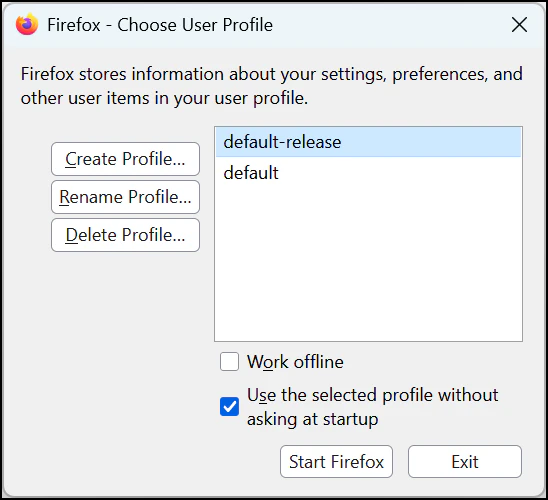
When launching this screen, it’s not fully intuitive, but the “default” profile you run with is “default-release.” make sure that’s always selected/highlighted in the above window. First thing to do is create a new profile. Keep the name simple, short and descriptive. Since this gets referenced elsewhere, it’s also a good idea to leave out spaces too. In my example, I’ll call it “Profile1.”
There is the matter of Firefox’s “new” profile system and whether that will merge with this legacy system also called profiles. We’ll have to wait and see, but for now these systems seem separate. One caveat here is that Firefox will generally manage the directories that contain the profile settings if you leave to the defaults This going to sit in Firefox’s default data folder.
Creating the Profile on Chrome
Chrome has user profile features, but those are good for syncing bookmarks and config data, but I wouldn’t use this for session control. The best way I’ve found is to launch new, distinct browser profiles from the command line. In the case of Chrome, you manage the profile directories yourself. Start by establishing a directory for profile data. As an example, I’ll create this structure:
This could be on any local drive such as C:\ on Windows or Macintosh HD on MacOS. You could chose to place this in your own user folder context too. It’s up to you. Always keep in mind that this may consume a ton of data depending how many sites you browse with Chrome. Once you have the directories setup, it’s just a matter of running Chrome. If the directory is empty, Chrome will fill the location with default profile data and start there.
Windows
Launching the browser looks like this. Replace the Chrome exe with the full path of your own Chrome installation. It can sometimes be in your profile or AppData directory:
"C:\Program Files\Google\Chrome\Application\chrome.exe" --user-data-dir="c:\data\Chrome\Profile1"
MacOS
open -n -a "Google Chrome.app" --args --profile-directory="/Users/user/data/profile1"
Putting these Profiles to work
On Windows:
Create a data directory and a directory for the each of the profiles that you need. Create a shortcut to launch each of those profiles with the command mentioned above. Put these links, or LNK files on the Desktop and launch them as you need.
But, to make it faster, place all of these LNK files in a directory and use something like Ueli to quick launch it with the plugin “Application Search” pointed at that location. This way you can quickly launch any of these these with ALT+SPACE and using “Chrome” in the names of the LNK files. The speed and functionality will help make up for all the windows you’ll have to manage. As an added trick, enable Chrome’s bookmark bar and place a bookmark (to anything) and name it after the profile (say Profile1), and any time this window is in focus, you’ll know what profile you’re in.
On MacOS:
You could create a simple text file on the desktop and name it Profile1.command. The .command extension tells MacOS to run what’s in the file. You have to right-click on the file, click ‘get info" and set the x attribute to on. Then add the profile launch command to the first line of the file with TextEdit or any text editor:
open -n -a "Firefox" --args -p "Profile1"
Double-clicking on that file will launch a new Firefox window and that profile and sessions within.
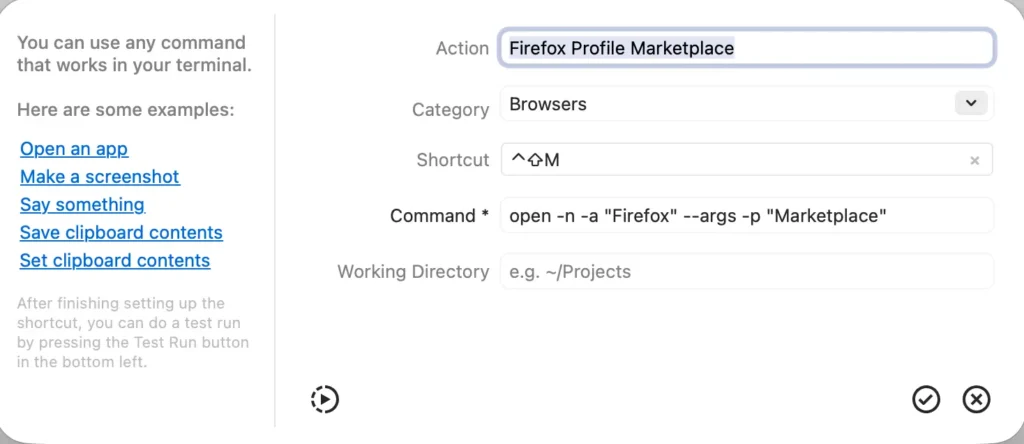
But to take this further, use a utility. I would suggest the great iCanHazShortcut (ICHS), that sits in your menu bar waiting. You simply create shortcuts here and assign a global hotkey that will launch this profile quickly. For example, here’s a shortcut to launch a Facebook Marketplace profile that launches with CONTROL + SHIFT + S:
Keep in mind, when launching a different profile, that has to close fully like a new application.
Final Thoughts
This might seem somewhat clunky, but it’s not bad considering what’s out there; and everything I’ve mentioned here is no cost. As you’re out on the web and find yourself logging into all sorts of systems, the need for multiple sperate sessions is going to present itself, and now you know how to do it.
-
If you are running the 32bit edition on 64bit Windows, the path needs (x86) - “C:\Program Files (x86)\Mozilla Firefox\firefox.exe\ ↩︎