A Tale of Two File Managers - Total Commander and Directory Opus
 File management is core to any operating system. Whether it’s the command line on Linux, the MacOS finder or Windows’ Explorer, any power user is inevitably going to need to upgrade to a more powerful file manager than the stock OS tool. On Windows, we have an embarrassment of riches when it comes to file managers, being best of breed and around for decades. In this article I wanted to look at two of the most mature and well-known and do a comparison: Total Commander (Tcmd) and Directory Opus (Opus).
There’s history here. Directory Opus was an Amiga tool and according to Wikipedia and was released a lifetime ago in 1990. While I did have an Amiga, I don’t recall ever using Opus. Total Commander is no slouch, being released in 1993 as a shareware tool then called Windows Commander1. These tools have extensive customization options and - to be clear - would work great for the everyday user. This article is an attempt to look deeper at the tools, for a pro user. And, full disclosure, I’m a lifetime Total Commander license holder and love the tool. For this article, I’ve attempted to work with the latest, so I’ll be looking at Total Commander 11.58 RC3 and Directory Opus 13.23.5 Beta. Given these are betas or release candidates, I’ll forgive any kind of instability or crashes in an effort to look at features. They will both be running on Windows 11 Professional in this review. As time passes, features and licensing fees will change.
Basic Operations
Tcmd’s approach to the details display is akin to a flat structure with less fluff. Opus takes a different approach and represents the detail view with carets that can expand the folder structure inline. These views are insanely customizable of course, but I tend to lean towards the sleeker Tcmd view. You’ll notice too that Opus kind of colour codes folders and files by default which is nice. I’m not sure if this is in all version of Opus, but opening folders plays an animation, which again, maybe a little too flashy. The elements on the screen that you find useful will boil down to your preference, and Tcmd leans in to the Norton Commander esthetic hard.
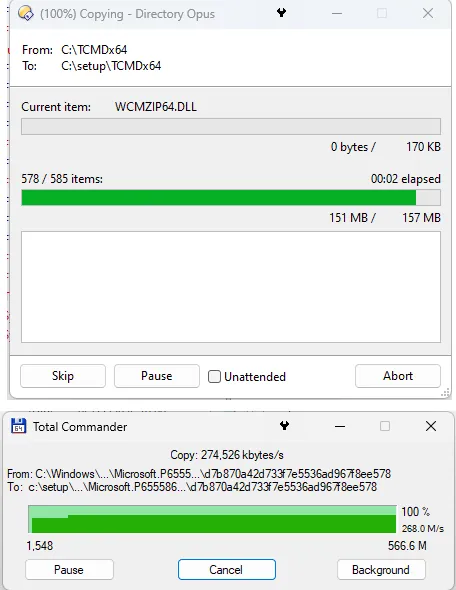 The file copy screen. Opus (top) and Tcmd (bottom)
The all-important right-click context menu in both Tcmd and Opus leave heavily to Windows’ own built-in menu. Notably, Opus adds an extra shell context item for compression and Tcmd sometimes doesn’t show the exact context menu that Explorer might. These can both be somewhat annoying, so no edge to either file manager.
When doing a file operation, the visuals are a bit different. There’s a big edge to Tcmd here in terms of speed, but both tools show enough information to keep it light while informing of the operation’s progress. Viewing files in a bit different here too. Tcmd has a nice built in viewer that manages to run fast and provide options for all kinds of files types beyond text through plugins. In terms of Opus, there seems to be a “slideshow” tool that acts like a file viewer. In both tools, you can enable a quick view pane that can be attached to the main window that lets you quickly view a file’s contents. I prefer Tcmd’s way of doing this, but both work.
Archives
When it comes to just about the most common thing you could do with a file manager outside of copying, the ability to compress and decompress files is core to both programs. They likely supported this right from the first release, so these tools have to be powerful and mature. Opus supports a bunch of archiving formats right out of the box, while Tcmd supports built-in zip, but has to be extended for support with other archivers. Visually, Tcmd’s archive window is superior, providing a great many options with almost zero wasted space. Strangely, Opus let’s you split archives in ZIP but not RAR. In this category Tcmd is the better tool, but Opus is not far behind. Both programs wisely treat archive files as they are folders, with the options to modify that behaviour.
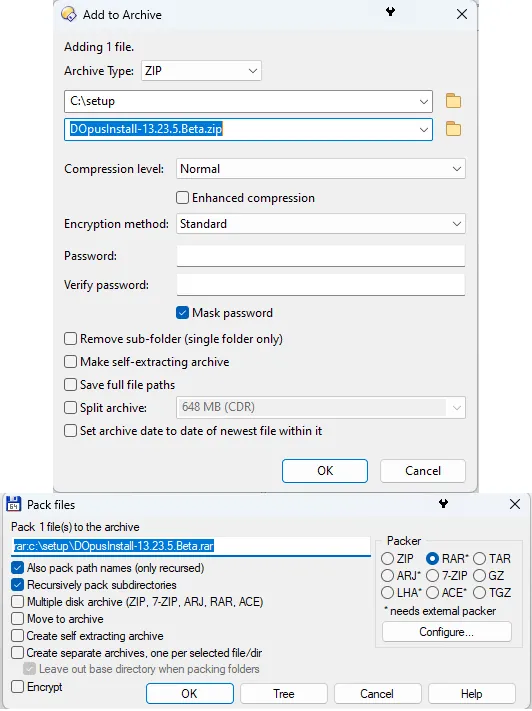 The file archive or compression screen. Opus (top) and Tcmd (bottom)
Extensibility
Tcmd shines here with deep support for plugins that do all sorts of things. The add-on system in Tcmd can make the program a much different tool. In Opus, it doesn’t seem to have a plugin system with the exception of what it calls “scripts”, but just about every visual element in Opus can be modified somehow. Tcmd offers more by allowing you to fully customize the main menu allowing for a ton of launch options for extended tools. Opus seems to take the approach of a custom bookmarks toolbar, which could function in a similar way.
Other Matters
As someone who cares about files, it’s important that I mention the main executable of both tools. Tcmd is written in Object Pascal2 and Opus is likely written in C++. Tcmd’s main executable is 10.2 megabytes, while Opus runs at 35.5 megabytes. That’s quite a difference in size. These will vary wildly with the version and whether 32 or 64 bit, but Tcmd has a ton going for it in terms of optimization. And, also a shoutout to Christian, the developer of Tcmd, for including a HISTORY.TXT so one can pour over any recent changes to the program. It’s just a great touch.
Tcmd’s help system is still a local CHM (Compiled HTML Help) file, while Opus goes the way of linking to an online help site. This is just preference, but you might like that you could get help with Tcmd even if you were off the Internet.
Tcmd represents breadcrumbs in the form of a path listing or drive letter combo box. This might be a bit off-putting to the person used to dealing with Explorer. In Opus, you have more of an explorer representation with arrows and pull down boxes that show things like “My PC” and, of course, hide the C: drive. Really minor stuff, but these maybe lean your preference for tool in one direction or the other outside of customizing things.
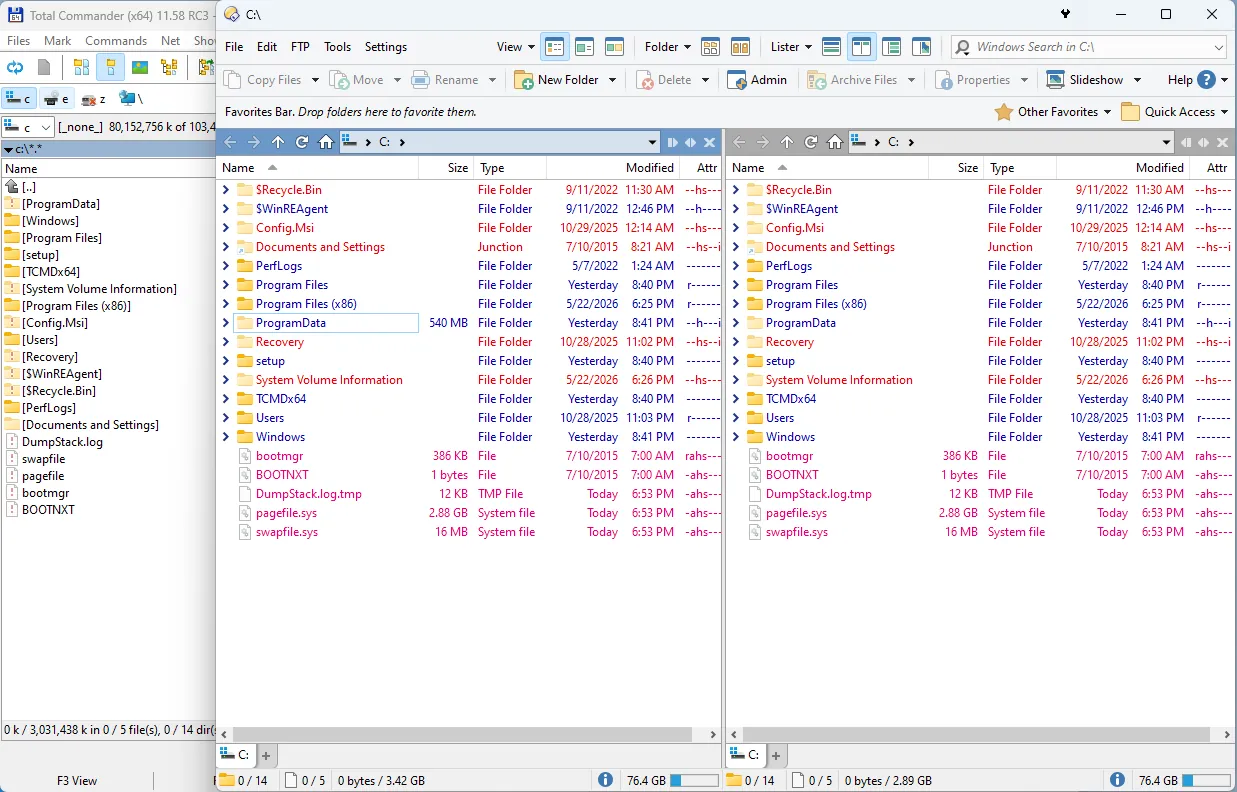 The tools side-by-side. Opus (right) and Tcmd (left)
Unique Features
In Opus, there’s an Admin mode that elevates the tool’s security level for a specified amount of time. That’s a slick feature I’ve found in many of the Sysinternals tools. There’s a place and time for that and it’s something that Tcmd does per operation (or you can run it as admin). There’s an Opus command line too that seems to interpret a bunch of languages. That seems like something that could be useful that Tcmd doesn’t have. Opus has a bunch of tools that might not typically be in a file manager (like rotating a photo), but this seems to be Opus’ strength: tools galore.
Licensing
This is where Tcmd is moves ahead of Opus. At the time of writing, a single computer Opus license is $89 AUD and gets you a year of free updates and makes you pay $25 AUD every year after that for updates. It’s the prerogative of them to charge that, but for Total commander, there’s a different approach. you can use the free version for 30 days as long as you wish and it includes an opening nag screen. The license is EUR 42 and provides for free updates in perpetuity (unless something changes)3. Opus has a more rigorous registration process, while Tcmd’s registration is a keyfile and updates are a serious breeze. Tcmd’s program is portable by nature and compact by design.
Total Commander is available at ghisler.com, while Directory Opus can be found at gpsoft.com.au.
-
As often happens, a big company threatens a small guy and in this case Microsoft made the developer change to “Total,” though some remnants of the old name remain. ↩︎
-
Think the Delphi programming environment. ↩︎
-
it hasn’t changed since I bought a license what seems like at least a decade ago, maybe more. ↩︎