Creating a Quick-Access Image Compression Workflow in Total Commander and Forklift

Just about the most common thing I do in file managers is act on the files themselves in some manner. Often I want to do more than copy or move. One frequent case is that of taking a PNG or JPG image and compressing it for use on the web with Google’s WEBP tools. This is where file managers shine, but to get this done, we need a utility and a bit of scripting. This will be done with a file manager for Windows: Total Commander and a similar tool for MacOS: Forklift. Let me show you how.
We’re going to setup a menu command that takes a selected file and compresses that file with the same name and in the same location, but with a WEBP extension. This might be a little more challenging than you think. The compression is done with Google’s cwebp or the command line webp compressor. I regularly update this when new versions come out. Right now, the current version of cwebp is 1.6.1. You can modify this process for AVIF as well using the compresion tool they offer and slightly altering the parameters1.
Get cwebp
On MacOS, open a terminal and install it by way of Homebrew: brew install --cask cwebp - you may chose to get the binary by alternative means, but that’s what I’ll be running in my Forklift script below. On Windows, you can download the binary from Google’s site. look for the newest libwebp-1.x.x-windows-x64.zip and decompress the cwebp.exe file somewhere, ideally in Total Commander’s own root folder (use COMMANDER_PATH to get that location).
In Total Commander
On Windows, we’ll change the “Start” menu of Total Commander. Click on “Start,” then “Change Start Menu…” You then add a new item and call it what you’d like. i call it something descriptive like “Compress Selected as WEBP (Images)”.
In this window add the required details. They look like this:
Command: %COMMANDER_PATH%\Tools\libwebp\cwebp.exe
Parameters: -q 80 -m 6 %P%N -o "%O.webp"
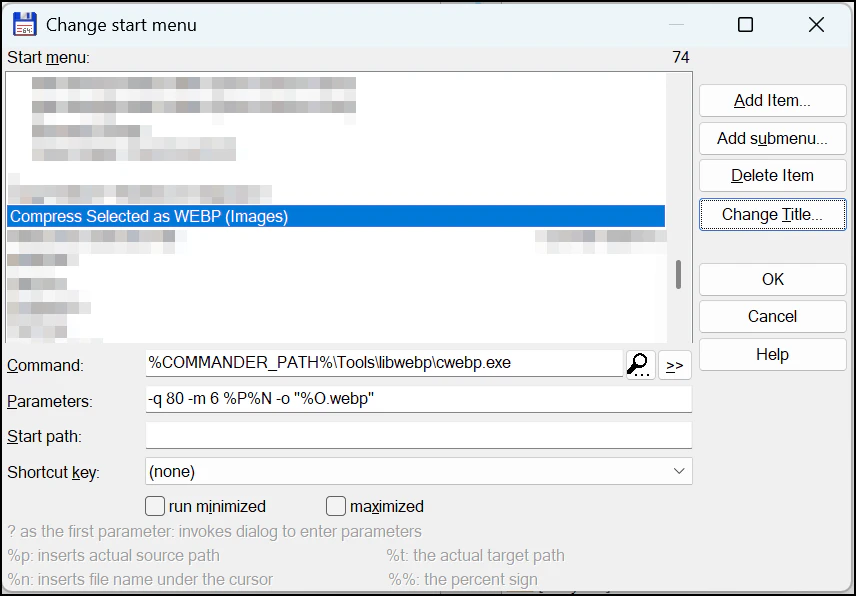
Total Commander provides a slew of built-in variables. The three to use here are:
- %P: causes the source path to be inserted into the command line, including a backslash () at the end.
- %N: places the filename under the cursor into the command line.
- %O: places the current filename without extension into the command line.
You could also chose to add a shortcut key sequence to make this quicker. When you select a JPG file, click Start and this command, Total Commander and cwebp will create a new file with the same name, but with the WEBP extension.
In Forklift
For Forklift, go to Settings and then Tools. There, click the plus and give it a name. I called mine “cwebp compress.”
There is a special case of a filename with spaces. When the application provides the file name and path by way of $SOURCE_PATH/$SOURCE_SELECTION_NAMES I found it adding escape characters just before the space: /Users/username/file\ with\ spaces.jpg. These had to be removed with an internal bash command like ${source//\\ / } where source is my variable for the full source path and file name. For short file names, this does not change the process.
The full script looks like this:
filename="$SOURCE_PATH/$SOURCE_SELECTION_NAMES"
filename="${filename::-4}"
source="$SOURCE_PATH/$SOURCE_SELECTION_NAMES"
source="${source//\\ / }"

/opt/homebrew/bin/cwebp "$source" -o $filename.webp
This will then be added to the end of Forklift’s “Commands” menu. Enable “Show in Toolbar,” and when you right-click on the toolbar to customize, you’ll have an option to drag that command to the main bar.

Extending this further
The most obvious is to account for multiple selected files. There does seem to be support for that in both file managers, though I have not explored it. In Forklift, my script will fail on a four character file extension such as JPEG. This could be dealt with by another command on the menu and replacing filename::-4 with filename::-5. This is not the most elegant solution, and coding something to detect the extension and run based on that would be nice.
Final Thoughts
This may be one of the simplest ways to extend a file management tool. When I’m evaluating any new tool, having features like this is an absolute must. I’d love to hear about ways you’re using to extend your own tools.
-
Notably, the avif compresser does not use -o for an output parameter, it’s just a filename string. ↩︎