

For those clients that use RustDesk, I’ve been working to setup an easier way to install the client on computers. Please follow these steps for computers you have NOT installed the RustDesk client for remote control on a Windows device yet. For non-Windows computers, please skip this page and contact your administrator.
1. You must first ensure that the RustDesk client has not been installed previously. Do this in Windows 11 by pressing WINKEY+X and clicking Installed Apps. Search there for RustDesk. If it is installed, contact Kevin.
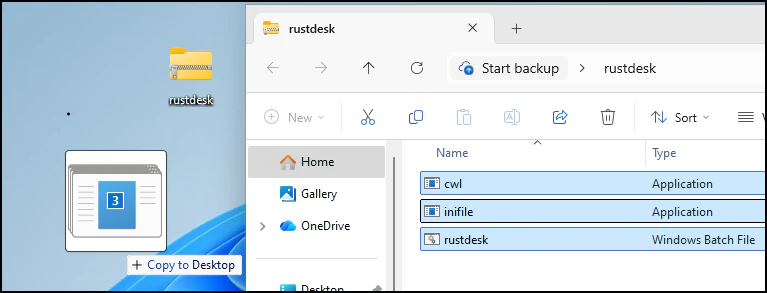
2. Download the latest client here. Place this file on your desktop or download the ensuing ZIP file and open it. Select each of the THREE files in the archive and drag them to the desktop.
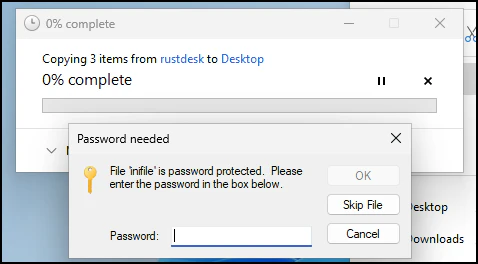
3. You’ll be asked for a password (see below for what that looks like). Contact Kevin for this because you will need it to extract these key files. Once the password is entered, click OK.
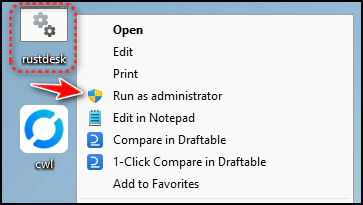
4. Now, right-click on the file named “Rustdesk” or “Rustdesk.Bat” and click on “Run as Administrator.” You may get one or more prompts. If you do, please respond to them in the affirmative so the program runs.
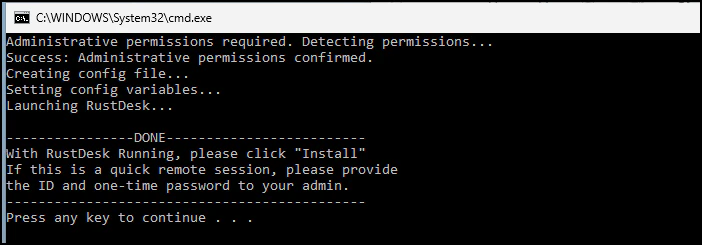
5. You will see a black screen that will either report an error or success/done. On success, the RustDesk client will also load. Contact Kevin if there is an error. This black screen can be closed on success.
6. Now, in the RustDesk client application, click on “Install” and follow the prompts to get the program setup on the computer.
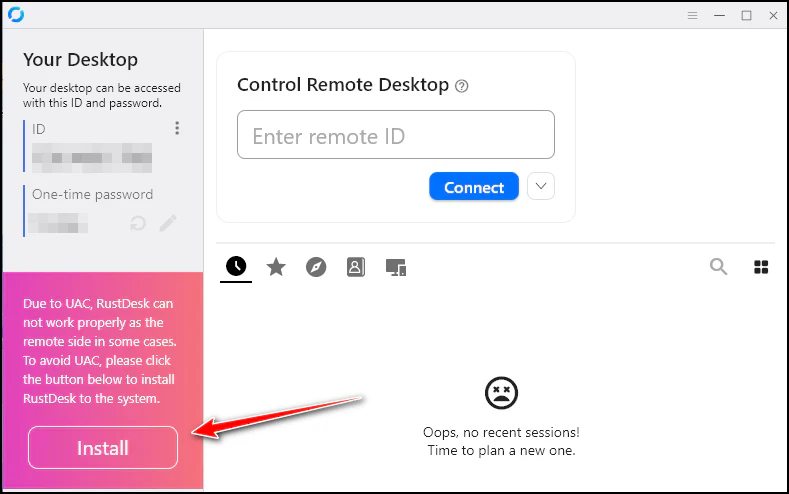
After this, the program is now installed. The files dragged to the desktop can be removed (inifiles, cwl, rustdesk). You may wish to contact Kevin to record or setup further details or do a quick remote session with the ID and one-time passwor