


The Strange Case of Keyboards Locking on Windows Boot (and a Fix)
Recently I was meeting a man in a coffee shop to buy a older, used computer. We’d met before so I knew he was a good guy.
As this fellow was booting up the computer, an unusual thing started to happen: the keyboard wasn’t working or initializing on boot. Not only that, but also his built-in mouse was failing. Given this was a Lenovo T470 laptop, none of this was making sense. Now, if one were to connect the power, or perhaps an external USB-based mouse, the computer’s keyboard would then work. Disconnect all this, shut down the computer and reboot, again no keyboard. This happens whether the computer auto-logs in (no password), or if it requires a password. This is the problem put him on the spot before he could sell me this computer.
It would be the both of us, in this coffee shop working to understand this unexpected problem and how to work through it. In fact, he mentioned a few times, someone else had seen the problem and told him how to fix it; he just couldn’t find the dang text message.
Needling around, I found the key setting on Windows 11 Pro:
- Press Windows Key + R to get the run box
- Type the word “control” and then
- Click “Hardware and Sound”
- Click “Power Options”
- Click “Chose what the power buttons do” (this, in future releases may be hidden further)
- You then click the “Change Settings that are currently unavailable” (1 in the below image) and click to remove the check mark next to “Turn on fast startup” (2 in the below image) and then “Save Changes”
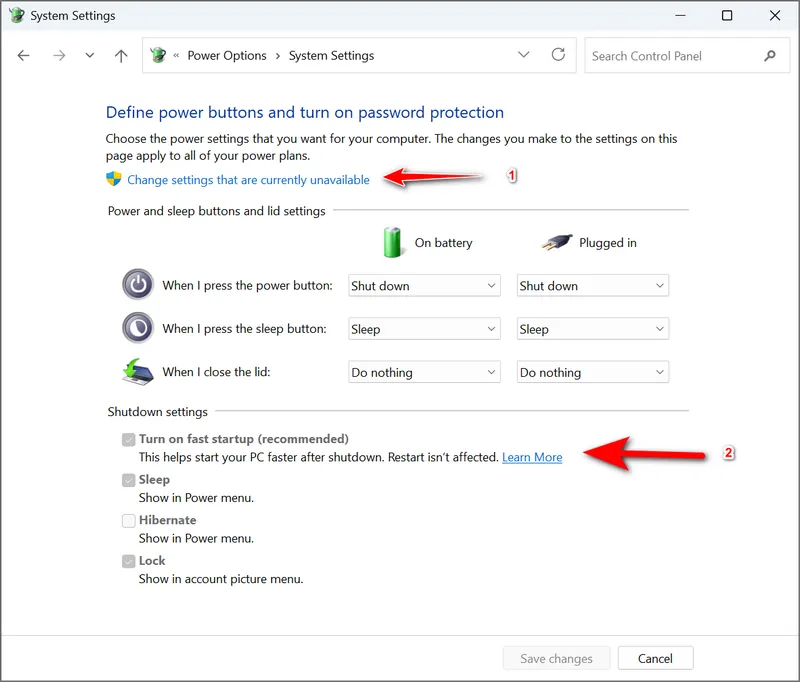
Turn off your computer (shut down), disconnect everything and do another clean boot and your keyboard should be good.
What this is this “fast startup” option? It’s clearly a legacy thing1 given the setting sits in the old style control panel. The basics of this feature have to do with a hybrid of hibernation and shutdown. This makes Windows create a special hibernation file for the sake of starting up faster. Now that computers have fast solid state drive memory and super fast RAM, this feature shouldn’t make a machine perform much differently.
What’s noticeable are the problems that come with this feature beyond keyboard issues. There’s talk of dual boot issues and UEFI failures. It’s on by default in Windows 11, so there’s no reason to shut it off, but if you run into this specific issue, this may be your fix.